

FxPro App for Android
Access FxPro from an Android phone or tablet, explore mobile trading features and follow the official FxPro download route.
Visit FxPro for the Android App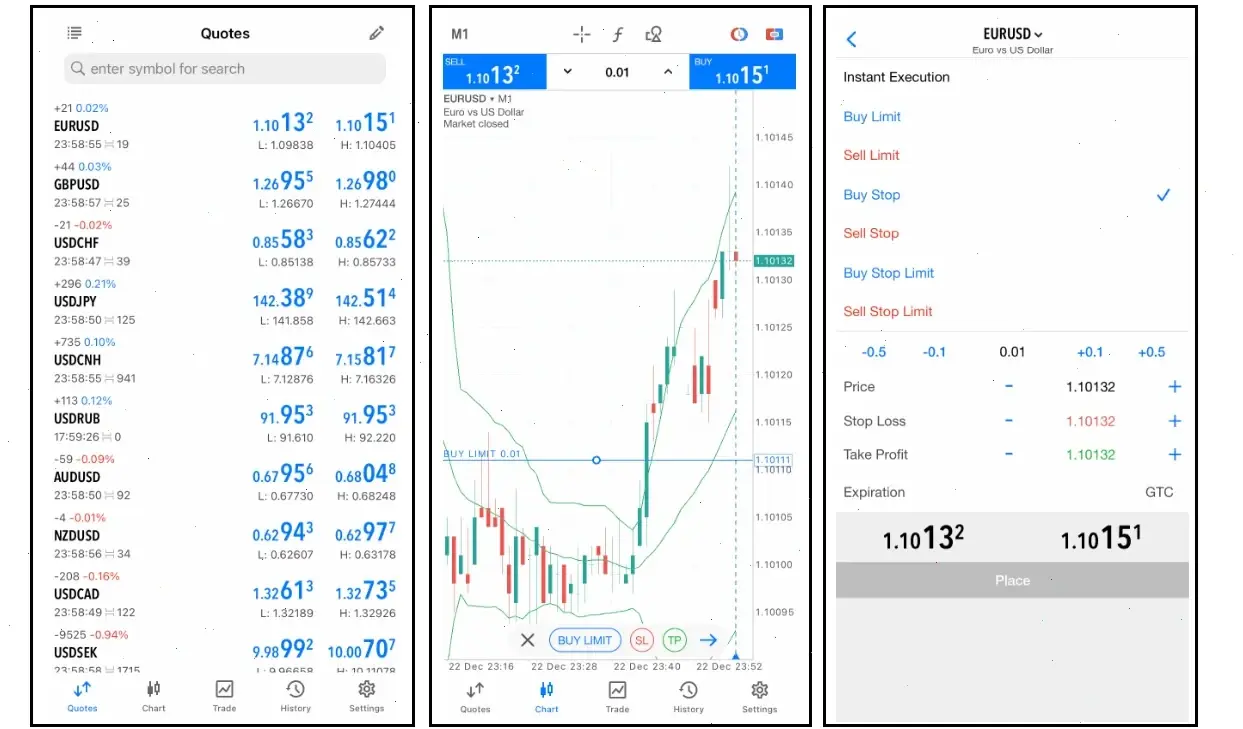
The FxPro website provides current information about its Android application, supported functions and available download options. Starting there also makes it easier to identify the correct app for your account and device.
On this page
What Is the FxPro App for Android?
The FxPro Android app is the broker’s mobile application for compatible smartphones and tablets. It brings together trading functions, account management, funding tools, market information and access to support in one interface.
The application is different from MetaTrader 4, MetaTrader 5 and cTrader Mobile. Those apps provide direct access to a specific trading platform, while the FxPro app also focuses on the wider management of the client profile and connected accounts.
Available tools can depend on the account type, trading platform, registered jurisdiction and current app version.
Explore the FxPro Android AppFxPro Android App Features
The Android application is designed as a mobile workspace for users who want to access markets and manage their FxPro profile away from a desktop computer.
| Feature | What it can be used for |
|---|---|
| Mobile trading | Open, monitor, modify and close supported positions from an Android device. |
| Price charts | Review market movements and use available charting and analytical tools. |
| Account management | Create, access and review compatible real and demo trading accounts. |
| FxPro Wallet | Review balances and make supported transfers between the Wallet and trading accounts. |
| Deposits and withdrawals | Access the funding methods currently available for the registered profile. |
| Demo trading | Use virtual funds to practise order placement and explore mobile tools. |
| Market information | Review scheduled events, market updates and available analytical content. |
| Notifications | Receive enabled account, market or price alerts on the mobile device. |
| Tablet support | Use a larger workspace for charts, account information and order management. |
The mobile format is useful for checking positions and responding to market activity when a desktop platform is unavailable. A larger desktop screen may still be more convenient for detailed analysis, multiple charts and advanced platform tools.
How to Download the FxPro App for Android
Users can begin from the FxPro website, review the current Android app information and follow the download option provided for their device and location.
1. Visit FxPro
Use the button on this page to continue to the FxPro website.
2. Find the Mobile App
Open the application or platform download section and select the Android option.
3. Review the App Details
Check the application name, developer, compatibility and current version information.
4. Start the Download
Follow the instructions displayed for the Android device.
5. Install the App
Wait for installation to finish and open the application from the device.
6. Register or Log In
Create a new FxPro profile or access an existing account.
FxPro also provides mobile versions of MT4, MT5 and cTrader. Check the platform connected to your trading account before choosing an application.
Visit FxPro to Download the Android AppFxPro Android Requirements and Compatibility
App availability and performance can depend on the Android version, device model, available storage, memory, screen format and regional settings.
Before Installing
- Install available Android system updates.
- Check that the device has sufficient free storage.
- Use a stable Wi-Fi or mobile-data connection.
- Confirm that the device date and time are correct.
- Review the latest compatibility details before downloading.
- Close unnecessary background applications on older devices.
Android Phones and Tablets
The app can be used on compatible Android phones and tablets. A tablet may provide more space for charts, account values, market information and order controls.
Actual performance depends on the device. Limited memory, older hardware or an unstable connection may affect chart loading, updates and order-screen responsiveness.
How to Register for the FxPro Android App
New users can create a FxPro profile and then access the mobile application using the credentials registered with the broker.
- Visit FxPro through the button on this page.
- Open the registration form.
- Enter an active email address and create a password.
- Add the requested personal and contact details.
- Complete the required identity and residency checks.
- Create a real or demo account.
- Select the preferred trading platform and account settings.
- Open the Android app and access the registered profile.
Registration requirements, account options and available services can vary according to the FxPro entity serving the client.
How to Log In to the FxPro App on Android
The FxPro app normally uses the email address and profile password connected to the user’s FxPro registration.
These details are different from the account number, trading password and server information used inside standalone MT4 or MT5 applications.
| Application | Typical login details | Main purpose |
|---|---|---|
| FxPro Android App | Email address and FxPro profile password | Profile, account, funding and supported trading functions |
| MT4 for Android | MT4 account number, password and server | Direct access to an MT4 trading account |
| MT5 for Android | MT5 account number, password and server | Direct access to an MT5 trading account |
| cTrader for Android | Compatible cTrader login details | Direct access to a cTrader trading account |
If the FxPro Password Is Forgotten
Use the password-recovery option connected to the FxPro profile. Do not repeatedly enter an MT4 or MT5 trading password into the main FxPro profile login form.
For more information about profile and account access, see the FxPro login page.
How to Trade with the FxPro Android App
After accessing a supported account, users can select an instrument, open its chart or order ticket and enter the required trade settings.
- Select a supported market or instrument.
- Open the chart or trading ticket.
- Choose the required order type.
- Enter the position size.
- Review the current price and estimated margin.
- Add stop-loss or take-profit levels where required.
- Select Buy or Sell.
- Monitor, modify or close the position from the account area.
The exact instruments and trading conditions depend on the account type, platform and jurisdiction.
FxPro Android App vs Desktop Platform
| Feature | Android app | Desktop platform |
|---|---|---|
| Mobility | Designed for phones and tablets | Designed for desktop or laptop use |
| Notifications | Mobile alerts may be enabled | Depends on the selected platform and settings |
| Chart workspace | Adapted to a smaller screen | More space for multiple charts and windows |
| Manual trading | Supported | Supported |
| Advanced indicators | More limited by the mobile interface | Better suited to advanced analysis tools |
| Automated trading | Limited compared with desktop platforms | More suitable for platform automation tools |
Managing FxPro Accounts on Android
The FxPro app can provide access to profile information, account balances, available trading accounts and selected account-management functions.
- Review real and demo accounts.
- Check account numbers and platform types.
- Monitor balance, equity and margin information.
- Access available account settings.
- Review transaction and transfer information.
- Contact support through the available communication options.
Users managing several accounts should check the selected account before opening a position or transferring funds.
Deposits and Withdrawals in the Android App
The FxPro app includes access to supported funding and account-transfer functions. Payment methods can vary according to the client’s country, account status, currency and FxPro entity.
- Deposits: view the funding options currently enabled for the profile.
- Internal transfers: move eligible funds between the FxPro Wallet and trading accounts.
- Withdrawals: submit and monitor supported withdrawal requests.
- Currency conversion: review any displayed exchange rate before confirming a transfer.
For more information about available payment options, processing times and possible charges, see FxPro deposit methods.
FxPro Demo Account on Android
A demo account allows users to explore the Android application and practise trading with virtual funds before moving to a live account.
Demo trading can help users become familiar with charts, order types, position sizes and account navigation. It does not remove the risks associated with live trading and may not reproduce every condition of a real account.
See the FxPro demo account page for more information about registration and available platforms.
FxPro APK: What Should You Know?
The phrase “FxPro APK” is often used when searching for an Android installation file. However, files offered through unrelated download websites may be outdated, modified or published by an unknown party.
A sensible approach is to review the current Android download information through FxPro and confirm that the application details match the version presented by the broker.
Risks of an Unofficial APK
- The file may contain modified or unwanted code.
- The version may no longer receive security updates.
- The publisher may imitate the FxPro name or branding.
- The application may request unnecessary permissions.
- Profile or trading credentials could be exposed.
- The file may not work correctly with current FxPro services.
Before entering an email address, password, account number or verification code, check that the application source and publisher details are consistent with the information provided by FxPro.
FxPro Android App in South Africa
South African users can access FxPro to review the current Android application, compatibility information and account functions available for their profile.
Available markets, account conditions, leverage and payment methods depend on the FxPro entity serving the client and the type of account selected.
App availability may also depend on the device, Android version and regional application settings.
FxPro Android Installation and Login Problems
The App Is Not Available on the Device
- Check whether the Android version is supported.
- Review the available device storage.
- Install pending system and application-store updates.
- Check the device and account regional settings.
- Review the current download information on FxPro.
The App Will Not Install
- Free additional storage space.
- Restart the phone or tablet.
- Check the internet connection.
- Install pending Android updates.
- Try the installation again after updating system services.
The FxPro Login Is Not Working
- Confirm the registered email address.
- Check the FxPro profile password.
- Do not use MT4 or MT5 account credentials in the main profile login form.
- Use password recovery when necessary.
- Check that the internet connection is stable.
Charts or Prices Are Not Loading
- Switch between Wi-Fi and mobile data.
- Close and reopen the application.
- Install the latest available app version.
- Check whether the selected market is open.
- Restart the device if the problem continues.
Notifications Are Not Appearing
- Allow notifications in the Android settings.
- Review notification preferences inside the app.
- Check whether background data is permitted.
- Review battery-optimisation settings.
How to Use the FxPro Android App Safely
- Review the current app details before installation.
- Check the application name and publisher.
- Keep Android and the FxPro app updated.
- Protect the device with a PIN, password or biometric lock.
- Do not share profile or trading passwords.
- Avoid logging in through unsecured public Wi-Fi.
- Review application permissions.
- Do not enter credentials into unknown APK applications.
- Use the support options displayed on the FxPro website or inside the app.
FxPro App for Android FAQ
- Is the FxPro app available for Android?
- FxPro provides an Android application for compatible phones and tablets. Availability can depend on the device and regional settings.
- Where can I download the FxPro Android app?
- Use the button on this page to visit FxPro, review the current Android app information and follow the download option provided for your device.
- Can I download a FxPro APK?
- APK files found on unrelated websites may be outdated or modified. Review the current Android download information through FxPro before installing an application.
- Can I use the FxPro app on an Android tablet?
- The application may be used on compatible Android tablets, providing more screen space for charts, account information and trading controls.
- How do I log in to the FxPro Android app?
- Use the email address and profile password connected to your FxPro registration. Standalone MT4 and MT5 applications use separate trading-account credentials.
- Can I register through the Android app?
- FxPro provides mobile registration and account-management functions. The exact steps and requirements depend on the client’s jurisdiction.
- Can I trade from the FxPro Android app?
- The app provides supported mobile trading, charting and order-management functions. Available instruments depend on the account and region.
- Can I use a demo account?
- Users can access supported demo trading functions and practise with virtual funds before using a live account.
- Is the FxPro app the same as MT4 for Android?
- No. The FxPro app is the broker’s own application, while MT4 for Android is a separate platform for MetaTrader 4 accounts.
- Can I manage deposits and withdrawals in the app?
- The FxPro app provides access to supported fund-management functions. Available payment methods depend on the profile, currency and jurisdiction.
- Why is the FxPro Android app not available on my device?
- Possible reasons include device incompatibility, an outdated Android version, insufficient storage or regional settings. Review the current compatibility information through FxPro.
- Is the FxPro Android app available in South Africa?
- South African users can visit FxPro to review current Android availability, compatibility and account conditions.
Risk warning: CFDs are complex instruments and involve a significant risk of losing money rapidly due to leverage. Consider whether you understand how CFDs work and whether you can afford to take the risk of losing your money.
This website is an independent informational and partner resource and is not the official FxPro website. Buttons redirect users to FxPro, where current Android compatibility, application information and download options can be reviewed. The content does not constitute investment advice.